

Model Context Protocol (MCP)
The Atoa Model Context Protocol (MCP) server provides a set of tools that AI assistants and applications can use to interact with the Atoa payment API. Process payments, manage customers, handle refunds, access bank feeds, and more — all through natural language or programmatic tool calls.
HTTP Mode (hosted)
Connect any MCP-compatible client to Atoa’s hosted server. No local installation required.
NPX Mode (local)
Run the MCP server locally via npx. Works offline and keeps credentials off HTTP.
Prerequisites
Before you begin, make sure you have:
- An Atoa SDK Token — follow the Getting Started guide to generate one
HTTP Mode (Recommended)
Connect any MCP-compatible client directly to Atoa’s hosted MCP server — no local installation required.
Endpoint: https://mcp.atoa.me/mcp
Pass your SDK token and target environment as request headers on every connection:
| Header | Required | Value |
|---|---|---|
Authorization | Yes | Bearer YOUR_AUTH_TOKEN |
X-Atoa-Env | Yes | sandbox or production |
X-Atoa-Payment-Redirect-Url | No | URL the customer returns to after completing payment |
X-Atoa-Ais-Redirect-Url | No | URL the user returns to after bank authorization |
Use your Sandbox token with X-Atoa-Env: sandbox and your Production
token with X-Atoa-Env: production. Mixing a token with the wrong
environment will return authentication errors.
AI Assistant Configuration
Most AI clients support HTTP-mode MCP connections natively. Use these configs to point your assistant directly at the Atoa MCP server.
Claude Code
Cursor
VS Code
Run from your terminal:
claude mcp add --transport http atoa https://mcp.atoa.me/mcp --header "Authorization: Bearer YOUR_AUTH_TOKEN" --header "X-Atoa-Env: sandbox"
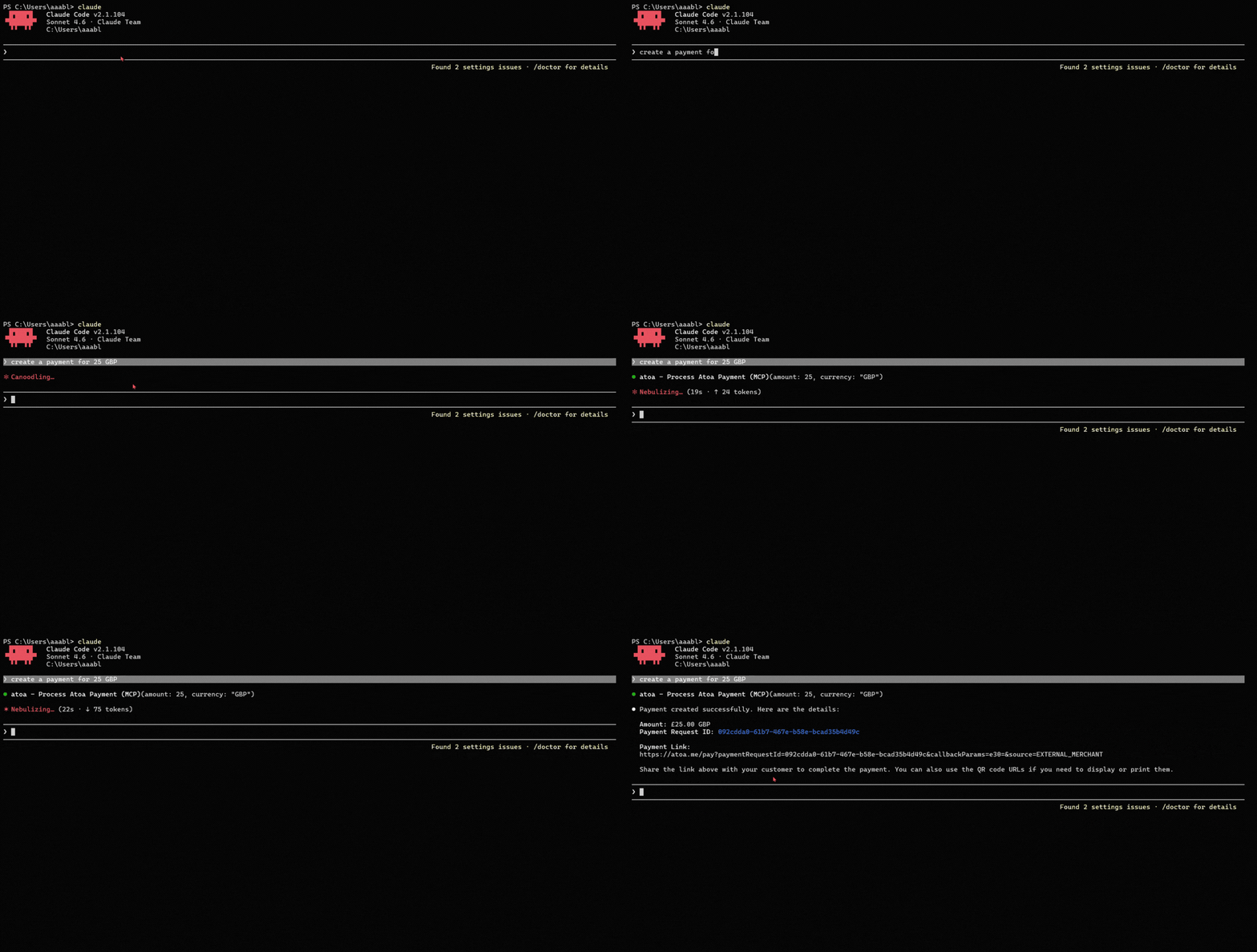
Switch X-Atoa-Env from sandbox to production (and swap your token) when you go live.
Connecting Programmatically (MCP SDK)
For web applications and backend services, use the MCP SDK’s StreamableHTTPClientTransport:
npm install @modelcontextprotocol/sdk
import { Client } from "@modelcontextprotocol/sdk/client/index.js";
import { StreamableHTTPClientTransport } from "@modelcontextprotocol/sdk/client/streamableHttp.js";

const transport = new StreamableHTTPClientTransport(
  new URL("https://mcp.atoa.me/mcp"),
  {
    requestInit: {
      headers: {
        Authorization: `Bearer YOUR_AUTH_TOKEN`,
        "X-Atoa-Env": "sandbox", // or "production"
      },
    },
  },
);

const client = new Client({ name: "my-app", version: "1.0.0" });
await client.connect(transport);

// List available tools
const { tools } = await client.listTools();

// Execute a tool
const result = await client.callTool({
  name: "get_stores",
  arguments: {},
});
Rate Limits
The HTTP endpoint enforces rate limiting on a per-token basis. Requests that exceed the allowed rate will receive a 429 Too Many Requests response. If this happens, back off and retry after a short delay using an exponential backoff strategy.
NPX Mode (Local)
Run the Atoa MCP server locally via npx. Use this when you prefer not to send auth headers over HTTP, need to work offline, or your AI client does not support HTTP-mode MCP connections.
Requires Node.js 18+ and npm 9+ (node --version to check).
Quick Setup
The fastest way to get started is the interactive wizard:
npx @atoapayments/mcp init
This walks you through a series of prompts and generates the configuration snippet you need to add to your AI client’s config file.
Manual Configuration
Add the following to your AI client’s MCP configuration file:
Claude Desktop
Cursor
VS Code
Gemini CLI
Edit claude_desktop_config.json:
- macOS:
~/Library/Application Support/Claude/claude_desktop_config.json - Windows:
%APPDATA%\Claude\claude_desktop_config.json
{
  "mcpServers": {
    "atoa": {
      "command": "npx",
      "args": ["-y", "@atoapayments/mcp"],
      "env": {
        "ATOA_AUTH_TOKEN": "YOUR_AUTH_TOKEN",
        "ATOA_ENV": "sandbox"
      }
    }
  }
}
Passing credentials via the env object keeps your token out of the process
argument list, which is more secure than using --auth-token CLI flags.
Optional environment variables you can add to the env block:
| Variable | Description |
|---|---|
ATOA_PAYMENT_REDIRECT_URL | URL the customer returns to after completing payment |
ATOA_AIS_REDIRECT_URL | URL the user returns to after bank authorization |
Switch ATOA_ENV from sandbox to production (and swap your token) when you go live.
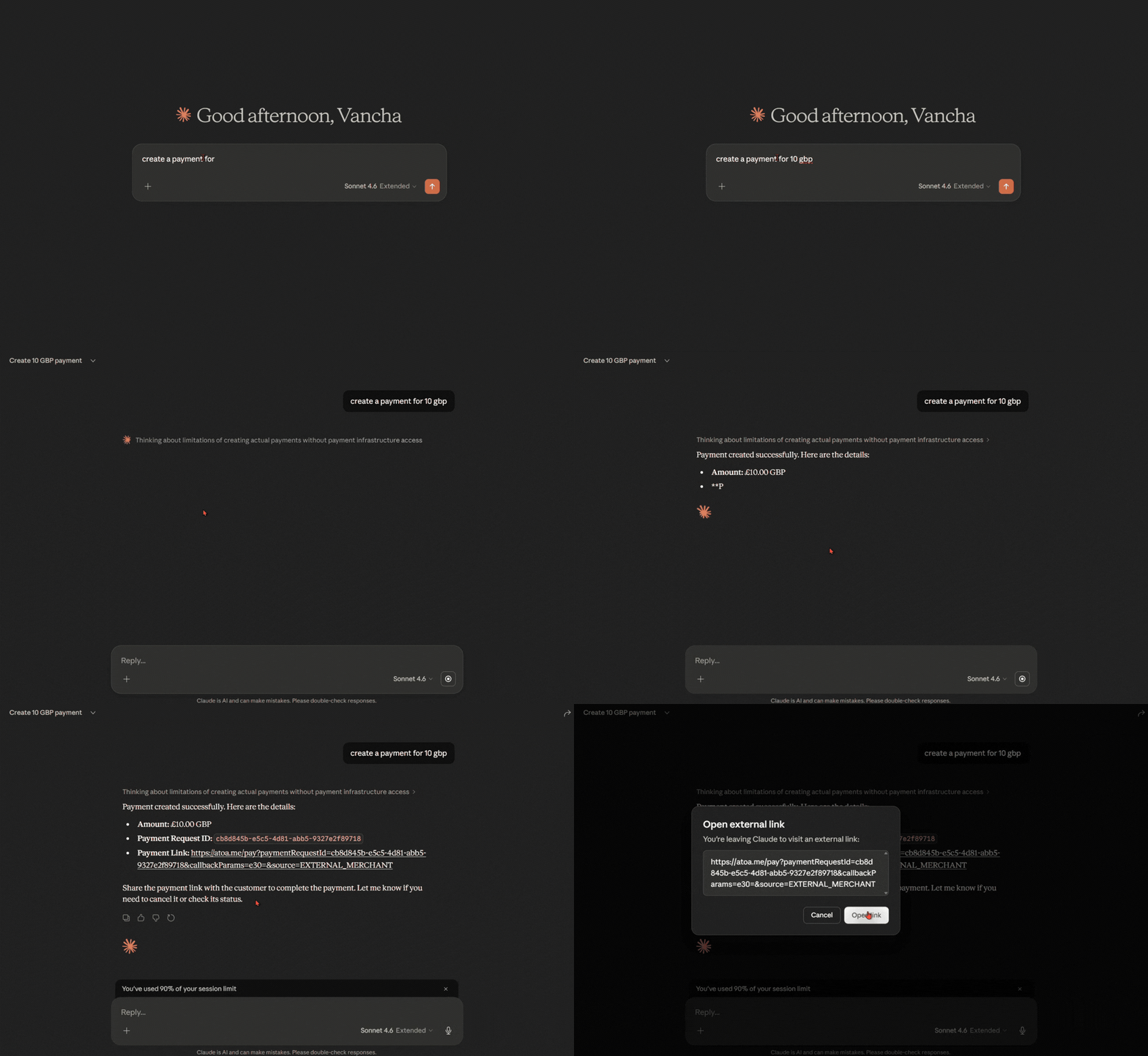
Once configured, restart your AI client and ask:
"Show me my Atoa stores"
If everything is set up correctly, the assistant will call get_stores and return your store list.
Available Tools
Browse the 29 tools below, organized into 8 categories. Click any category to expand.
Some tools are guarded by your merchant’s capabilities. For example, card-on-file tools require card payments to be enabled, AIS tools require AIS bank feed access, and tipping requires tipping to be enabled. Contact hello@paywithatoa.co.uk to check which features are active on your account.
Core Workflows
Troubleshooting
Need Help?
Contact our team at hello@paywithatoa.co.uk or use chat support on the Dashboard.