

React Native SDK
Introduction
Integrate Atoa into your React Native app in minutes using our dedicated SDK.
Easily add seamless Pay by Bank payments to new or existing React Native apps. The SDK is available on npm, where developers are welcome to contribute and provide feedback.
Prerequisites
Before you start, ensure the following setup is complete:
-
Create an Atoa account: Sign up using our Business App or Web Dashboard.
-
Generate API keys: Go to API Access inside the Atoa Business App and generate keys for Sandbox (testing) and Production (live).
-
Backend readiness: You must be able to create a Payment Request on your backend server using Atoa APIs before calling the React Native SDK.
See the Getting Started guide for more information.
1: Install the SDK
Run the following to add the Atoa SDK to your React Native project
npm install @atoapayments/atoa-react-native-sdk
or
yarn add @atoapayments/atoa-react-native-sdk
2. Install required dependencies
The SDK uses a few community libraries for its payment sheet UI. Most React Native projects already have some of these — only add the ones you’re missing.
| Package | Used for | You likely have it if… |
|---|---|---|
react-native-gesture-handler | Touch & swipe gestures | You use React Navigation or bottom sheets |
react-native-reanimated | Smooth animations | You use any animation-heavy library |
react-native-svg | Icons and graphics | You render SVGs anywhere in your app |
@gorhom/bottom-sheet | Payment sheet modal | — |
@react-native-community/netinfo | Network connectivity detection | — |
lottie-react-native | Payment status animations | — |
Install all at once (skip any you already have):
npm install @gorhom/bottom-sheet react-native-gesture-handler react-native-reanimated react-native-svg @react-native-community/netinfo lottie-react-native
Using Expo? Use npx expo install instead to ensure compatible versions:
npx expo install @gorhom/bottom-sheet react-native-gesture-handler react-native-reanimated react-native-svg @react-native-community/netinfo lottie-react-native
Note:
react-native-reanimatedrequires a Babel plugin. If you haven’t already, add'react-native-reanimated/plugin'to yourbabel.config.js. See the Reanimated installation guide for details.
For usage, sample code to integrate can be found in Example app.
3. Wrap Your App with AtoaProvider
Wrap your app root with <AtoaProvider> to enable the Atoa payment modal. This is required for AtoaSdk.pay() to work.
// index.js
import { AppRegistry } from "react-native";
import { AtoaProvider } from "@atoapayments/atoa-react-native-sdk";
import App from "./App";
import { name as appName } from "./app.json";

const Root = () => (
  <AtoaProvider>
    <App />
  </AtoaProvider>
);

AppRegistry.registerComponent(appName, () => Root);
Alternatively, if you already use react-native-root-siblings in your project, you can wrap with <RootSiblingParent> directly:
import { RootSiblingParent } from "react-native-root-siblings";

const Root = () => (
  <RootSiblingParent>
    <App />
  </RootSiblingParent>
);
4: Generate a Payment Request (Backend)
You can generate a payment using the payment-process API, which must be called from your server while creating an order. Refer to the getting started guide to know more
https://api.atoa.me/api/payments/process-payment
curl --location --request POST 'https://api.atoa.me/api/payments/process-payment' \
--header 'Authorization: Bearer {access-secret}' \
--header 'Content-Type: application/json' \
--data-raw '{
    "customerId": "<Your Unique Customer Id>",
    "orderId": "<Order Id>",
    "amount": "<Total Amount >",
    "currency": "GBP",
    "paymentType": "<DOMESTIC>",
    "autoRedirect": "<true or false>",
    "consumerDetails": {
      "phoneCountryCode": "<Country Code>",
      "phoneNumber": "<Phone Number>"
  }
}'
Note: redirectUrl can be used to redirect the user back to your app after the payment is completed. Follow the information given in the handle redirection steps below
5. Launch the Payment Dialog
Do not display the payment widget before your backend has successfully created
a valid paymentRequestId.
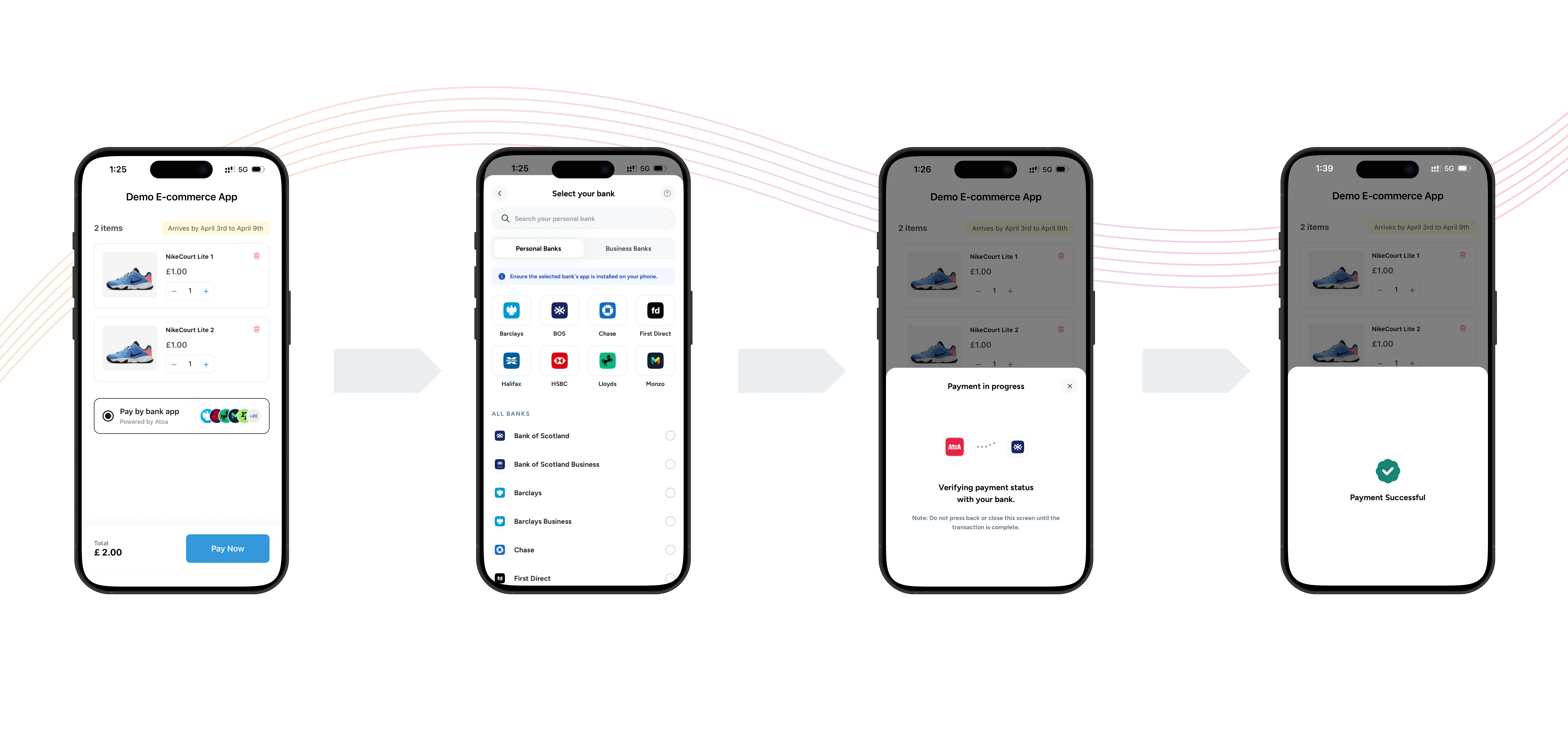
After obtaining a valid paymentRequestId, you can now invoke the React Native SDK’s Pay method to show the checkout experience:
const transactionDetails = await AtoaSdk.pay({
  paymentId: "your-payment-request-id",
  showHowPaymentWorks: false,
  customerDetails: {
    // pass customer details for pre-select bank
    phoneCountryCode: "44",
    phoneNumber: "8788899999",
    email: "aaa@gmail.com",
  },
  env: "production",
  // or 'sandbox'

  onUserClose: ({
    paymentRequestId,
    redirectUrlParams,
    signature,
    signatureHash,
  }) => {
    // handle payment when user close the payment verification bottom sheet
    console.log(
      `User closed the payment for paymentRequestId: ${paymentRequestId}`,
    );
  },
  onPaymentStatusChange: ({
    status,
    redirectUrlParams,
    signature,
    signatureHash,
  }) => {
    // handle payment status
    console.log(`Payment Status Changed to ${status}`);
  },
  onError: (error) => {
    // handle Atoa Mobile SDK error
    console.error(`Error in Atoa Mobile SDK: ${error.message}`);
  },
});
Pass customerDetails if available. It pre-selects the user’s previous bank
for faster checkout.
SDK Parameters
| Parameters | Type | Required | Description |
|---|---|---|---|
| env | AtoaEnv | Yes | Environment: 'sandbox' or 'production' |
| paymentId | String | Yes | Unique payment request ID |
| showHowPaymentWorks | Boolean | Yes | Display onboarding sheet for users |
| customerDetails | CustomerDetails | No | Mobile + Email to fetch last-used bank |
| onError | Callback | Optional | Called on SDK errors |
| onPaymentStatusChange | Callback | Optional | Called when the payment status updates |
| onUserClose | CallBack | Optional | Called when user closes payment verification sheet |
6. Handle Payment Response
You can handle the payment success, failure, pending and other statuses based on payment response
if (transactionDetails) {
  if (isCompleted(result)) {
    // handle success
  } else if (isPending(result)) {
    // handle pending
  } else if (isFailed(result)) {
    // handle failure
  }
} else {
  // Bottom sheet was dismissed
}
Sample response can be seen here.
7. Handle Redirection (Deep link)
While calling payment-process API to generate a payment, you can specify a redirectUrl in your request body. The redirectUrl, which should be passed as body parameters, redirects to your website and then opens your app via deep linking. This enables users to open your application after payment.
Following the completion of the payment by the customer’s bank app, they will be redirected back to their browser. Atoa will transmit the idempotency id, amount and redirect URL with status as query parameters appended to your specified Redirected URL, forming a URL structure like:
www.yourdeeplink.me?idempotency=ATOA783838728372&redirectUrl=https://pay.me&amount=2
Resources For Implementing deep-linking for your app
Subscribe to webhook (Recommended)
Atoa uses webhooks to notify your application whenever an event happens in your account. Webhooks are particularly useful for events such as changes in payment status, such as completion, failure, or pending.
To get started, you must Register your webhook endpoint so Atoa knows where to deliver events.
After registration, your endpoint will start receiving detailed webhook payloads. These will inform you of payment status updates, such as COMPLETED, PENDING, or FAILED.
Store Fields in Server
Store the following in your backend once the transaction is complete.
 "signatureHash": string
 "paymentIdempotencyId": string
8. Check Bank App Installation (Android/iOS Requirements)
Our mobile SDK checks if the bank(using for making payments) app is installed or not. For that, you need to add ‘queries’ tag for android and ‘LSApplicationQueriesSchemes’ key for iOS
9. Verify Payment Signature
This is a mandatory step to confirm the authenticity of the details returned to the Checkout form for successful payments.
You can verify the signature by doing this.
10: Test in Sandbox
Use the sandbox for testing different flows
const result = await AtoaSdk.pay({
  paymentId: "your-payment-request-id",
  env: "sandbox",
  showHowPaymentWorks: false,
  // other config properties
});
Refer to the Sandbox Guide to simulate different outcomes.
11: Brand & Customize (Optional)
Theme Color: Choose your brand’s hex color in the dashboard. The widget will automatically reflect your theme color. Update your theme color here
Design Guidelines: Refer to our official branding guide to correctly showcase “Pay by Bank” in your checkout. View Figma file
Note: You do not need to pass the theme color in the SDK. Simply configure these once from your Dashboard or Atoa Business App